Buyer credits give each customer an AI allowance at a markup you choose. Your workspace still pays the actual AI cost; the customer's allowance is a separate meter.
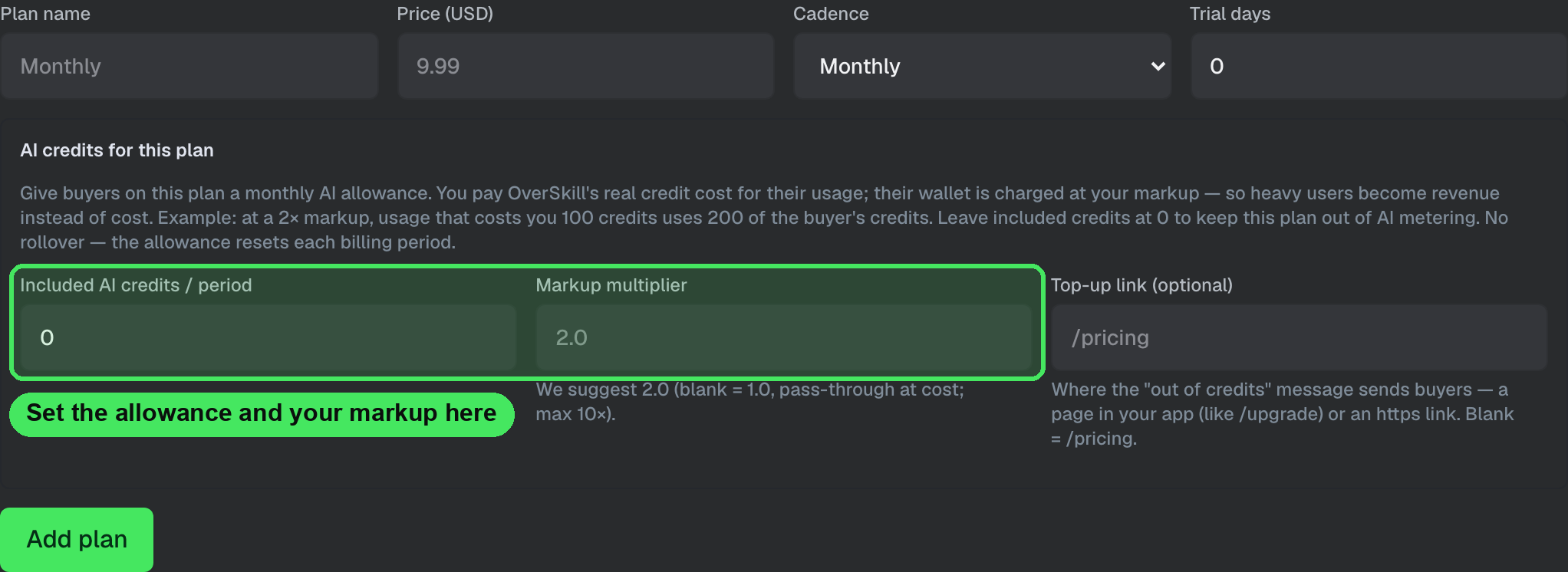
At a 2× markup, an action costing your workspace 1 credit uses 2 buyer credits. An allowance of zero leaves that plan outside buyer-credit billing.
Set up an allowance
- Open your app's Monetize section and create or select a plan.
- Set Included AI credits / period and the markup multiplier. You set these values yourself; the builder can help create the plans.
- Republish the app and check the buyer's balance card and out-of-credits message.
If the AI credits panel is missing, ask support to check availability for your workspace.
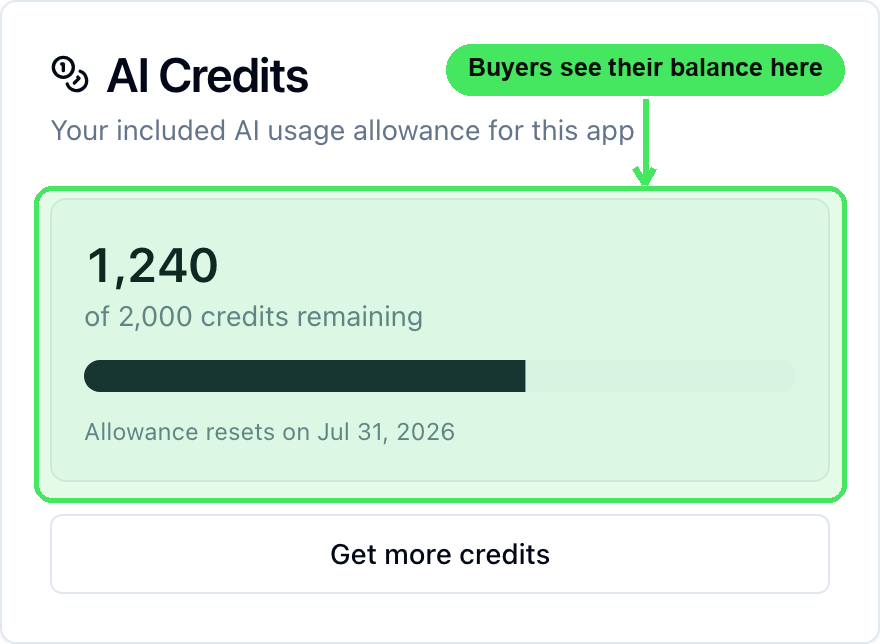
Customers see their balance, usage, reset date and top-up button in the app's AI Credits card. When their wallet runs out, the app should show the top-up or upgrade action.
Resets and adjustments
- Included credits reset each billing period. Unused included credits do not roll over.
- A markup change applies to an existing customer's next billing period.
- To grant extra credits, open Users and choose a customer with a wallet.
- Purchases and refunds use your app's payment setup.
- If your workspace runs out of credits, buyer balances do not cover its bill. See Out of credits.
Set app and user limits
Where enabled, Dashboard → Settings → Advanced settings → End-User AI Limits has a monthly app budget and daily/monthly request limits per signed-in user. Blank means unlimited; zero means no AI. Plan allowances replace the flat per-user limits for customers on those plans.
These are soft limits. The budget uses hourly aggregated usage, simultaneous requests can exceed per-user counters, and temporary limit-store failures can allow requests. Anonymous visitors are not covered by per-user limits. Your own outside AI provider is billed separately.
For strict usage rules, have the builder enforce them on the server before paid work. Buyer credits measure AI usage; they do not automatically count appointments, readings or other units you sell.
Custom AI endpoints
Have the builder pass the verified getAuthContext(request, env).billingUserId as options.userId to routeToAiProviderWithUsage.
Handle these responses before showing success:
WALLET_CREDITS_EXHAUSTED:success: false, HTTP 402 and atopUpUrl.AI_BUDGET_EXHAUSTED: HTTP 429 when the enabled app budget is exhausted, including anonymous calls.
Daily/monthly per-user generation caps apply to built-in AI routes. Existing custom endpoints need their own billing identity and error handling; a platform Worker update preserves their handler code.
Sharing credits with employees
A wallet belongs to one buyer in this app. Inviting employees does not pool their allowances.
A shared allowance needs a verified authorization and billing design. Never trust an owner ID supplied by the browser to charge someone else's wallet. Test two buyers independently before selling a team plan.